
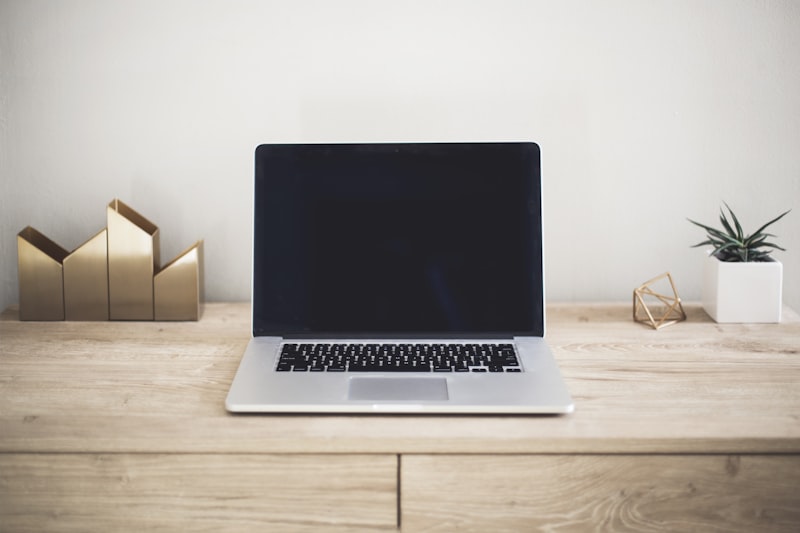
How to Type Faster on a Laptop Keyboard: Tips and Techniques
If you spend most of your day typing on a laptop, you know the struggle. Laptop keyboards are notoriously different from their desktop counterparts — shallower key travel, more compact layouts, and often smaller key caps. Yet, with the right techniques, you can type just as fast (if not faster) on a laptop keyboard.
In this guide, we'll cover actionable tips to help you boost your typing speed on a laptop keyboard, from posture adjustments to practice routines.
Why Laptop Keyboards Are Different
Before diving into the tips, it helps to understand what makes laptop keyboards unique:
- Shallow Key Travel: Laptop keys typically have 1–2mm of travel distance, compared to 4mm on mechanical keyboards. This means you don't need to press as hard, but it also reduces tactile feedback.
- Compact Layout: No numpad, smaller function row, and often condensed navigation keys. This forces you to rely more on the main typing area.
- Chiclet-Style Keys: Most modern laptops use island-style (chiclet) keys that are flat and widely spaced. This design can actually help reduce typing errors once you adapt.
- Heat and Comfort: Laptops get warm, and the keyboard deck can become uncomfortable during long sessions.
1. Master Proper Posture on a Laptop
Posture is the foundation of fast typing. When using a laptop, you're at a disadvantage because the screen and keyboard are attached. Here's how to fix it:
- Use a Laptop Stand: Elevate your laptop so the top of the screen is at eye level. This prevents neck strain and lets you maintain a neutral spine position.
- Add an External Keyboard: If possible, connect a wireless keyboard and place it at elbow height. Your elbows should be at a 90-degree angle.
- Wrists Straight: Keep your wrists straight and floating above the keyboard, not resting on the palm rest. Resting your wrists can compress nerves and slow you down.
If you can't use an external keyboard, try tilting the laptop back slightly using a stand or book to create a better typing angle.
2. Use the Right Finger Placement
Touch typing is the single most effective way to increase your speed on any keyboard. On a laptop, it's even more important because the keys require a lighter touch.
- Home Row Position: Place your left fingers on A, S, D, F and right fingers on J, K, L, ;. Your thumbs should rest on the space bar.
- Use All Fingers: Avoid hunting-and-pecking with just your index fingers. Train every finger to reach its assigned keys.
- Lighter Touch is Better: Laptop keys require less force. A gentle tap is enough to register a keystroke. Pressing too hard will slow you down and cause fatigue.
3. Learn Laptop-Specific Keyboard Shortcuts
One of the biggest speed advantages on a laptop is mastering keyboard shortcuts. Since you don't have a numpad or dedicated navigation keys, shortcuts become essential.
- Navigation: Learn
Ctrl + Arrow Keys(orCmd + Arrowon Mac) to jump between words. AddShiftto select text. - Tab Switching: Use
Ctrl + TabandCtrl + Shift + Tabto cycle through browser tabs. - Desktop Switching: On Windows, use
Win + Tab; on Mac,Ctrl + Upor three-finger swipe up. - Function Key Shortcuts: Most laptops put media controls, brightness, and volume on the function row. Learn these by heart so you don't need to look down.
Memorizing just 10 essential shortcuts can save you minutes every day.
4. Adjust Your Laptop Keyboard Settings
Modern operating systems offer settings that can make a real difference in typing speed:
- Disable Trackpad While Typing: Nothing slows you down like accidentally moving the cursor. Enable "disable trackpad while typing" in your settings.
- Increase Key Repeat Rate: Go to your keyboard settings and set the key repeat rate to fast and repeat delay to short. This helps when holding down keys for navigation or deletion.
- Turn Off Animations: Disable visual effects and animations in your OS. This makes the interface feel snappier and reduces perceived lag.
- Set Your Keyboard Layout: Make sure your keyboard layout matches your physical keyboard (e.g., QWERTY, AZERTY, QWERTZ). Using an incorrect layout will make you slower.
On Windows, you can find these under Settings > Bluetooth & Devices > Typing. On Mac, go to System Settings > Keyboard.
5. Practice Typing on Your Actual Laptop Keyboard
Many people practice on a mechanical keyboard and then switch to their laptop and wonder why they're slower. Your muscle memory adapts to the specific keyboard you use.
- Practice on Your Laptop: Use typing tests and practice tools on the same laptop you use daily. This trains your fingers for the exact key travel and layout.
- Alternate Between Keyboards: If you switch between a desktop and laptop, practice on both regularly.
- Use a Typing Tutor: Spend 10–15 minutes daily on a structured typing lesson tailored to laptop keyboards.
Our online typing test lets you practice in real-time with your laptop keyboard, tracking your WPM and accuracy.
6. Keep Your Laptop Keyboard Clean
A dirty keyboard is a slow keyboard. Sticky or dusty keys can cause missed keystrokes or require extra force to press.
- Compressed Air: Use compressed air weekly to remove debris from under the keys.
- Microfiber Cloth: Wipe the key caps with a slightly damp microfiber cloth.
- Avoid Eating Over Your Laptop: Crumbs are the #1 cause of sticky laptop keys.
7. Use a Palm Rest for Long Sessions
Laptop keyboards sit flush with the chassis, which can make it hard to keep your wrists elevated. A thin palm rest helps maintain proper wrist position without sacrificing portability.
- Gel Palm Rests: Compact and comfortable for long typing sessions.
- DIY Solutions: A folded towel or even a book can work in a pinch.
8. Consider an External Keyboard for Heavy Typing
If you type more than 4 hours a day on a laptop, investing in a mechanical or ergonomic keyboard is one of the best productivity upgrades you can make.
- Mechanical Keyboards: Offer tactile feedback and faster typing speeds.
- Low-Profile Keyboards: The Cherry MX Low Profile or similar switches mimic laptop key feel while offering better feedback.
- Ergonomic Split Keyboards: Reduce wrist strain and can improve speed by allowing a more natural hand position.
Even a basic $30 external keyboard can significantly improve your typing speed compared to a built-in laptop keyboard.
9. Track Your Progress
You can't improve what you don't measure. Use our free typing test to track your WPM and accuracy over time. Set a goal — for example, increase your WPM by 5 each week.
- Daily Check-ins: Take a 1-minute typing test every day.
- Focus on Accuracy First: Speed will follow naturally. Aim for 95%+ accuracy before trying to push your speed.
- Identify Weak Keys: Pay attention to which keys consistently slow you down (e.g., reach keys like B, Y, or numbers).
Conclusion
Typing fast on a laptop keyboard is absolutely achievable. The key is to adapt your technique to the unique characteristics of laptop keyboards — lighter touch, proper posture, and consistent practice. Start with one or two tips from this list, practice daily, and you'll see your typing speed improve within weeks.
Ready to test your laptop typing speed? Take our typing test now and see where you stand!